Google Workspace
Which AI tool, for what.

Teodora Baciu
Co-founder, Gate to AI
October 2026
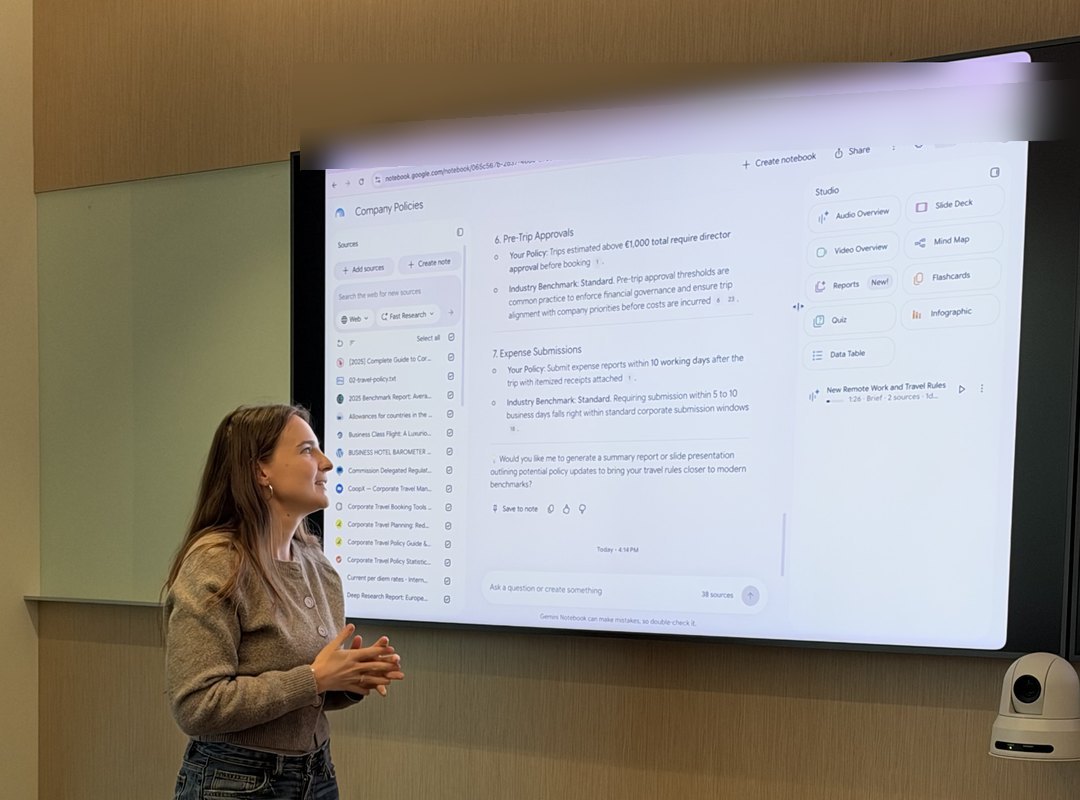
If your company runs on Google Workspace, you probably already have five AI tools in your account: NotebookLM, Deep Research, Gems, Gemini and Canvas in Sheets. Which ones you see depends on your Workspace edition and on what your admin has switched on.
People are already flooded with information, and one more tool doesn’t help on its own. What helps is knowing which one to open for which job.
That was the question behind my last training, a full day with a corporate team, on the kind of documents, reports and numbers they handle every week. This is the map we left with, and what each tool does best.
The map
Find the job you have. The solid mark is the tool to open first, an outlined one is a tool that can help.
| NotebookLM | Deep Research | Gems | Gemini | Canvas in Sheets | |
|---|---|---|---|---|---|
| Find an answerin your own documents | best for this | can help | can help | ||
| Learn something newa topic, a long document, a video | best for this | can help | can help | ||
| Research the webwith every source listed | can help | best for this | can help | ||
| Write a documenta briefing, a memo, a report | best for this | best for this | can help | best for this | |
| Show the numbersa dashboard or an infographic | can help | can help | best for this | ||
| Repeat the same taskwith the same rules every time | best for this |
Find an answer
in your own documents
Best:NotebookLMCan help:GemsGeminiLearn something new
a topic, a long document, a video
Best:NotebookLMCan help:Deep ResearchGeminiResearch the web
with every source listed
Best:Deep ResearchCan help:NotebookLMGeminiWrite a document
a briefing, a memo, a report
Best:NotebookLMDeep ResearchGeminiCan help:GemsShow the numbers
a dashboard or an infographic
Best:Canvas in SheetsCan help:NotebookLMGeminiRepeat the same task
with the same rules every time
Best:Gems
Each tool, and what it’s good for
1 · Your sources
NotebookLM
Its strength is accuracy. It answers only from the sources you give it, with a citation for every claim, so you can click and see exactly where an answer came from.
- LegalOne question across 40 contracts
- HRAn onboarding hub where new colleagues ask their questions
Tips & tricks
- Paste a YouTube link as a source. NotebookLM pulls the transcript, and you can ask the video anything.
- To learn something new, turn the same sources into a mind map, an infographic or an audio overview.
2 · The outside world
Fast and Deep Research
It reads the web for you and lists every source, so you can check them. Fast Research is the colleague down the hall: a fact or two, in seconds. Deep Research is a researcher’s afternoon done in minutes: dozens of sources, one report.
- HRYour benefits, compared with the market
- PMThe vendors available, before a decision
Tips & tricks
- Run it inside NotebookLM and the sources land straight in your notebook, next to your own documents.
3 · Your rules
Gems
An assistant you give the rules to once. After that it does the same job, the same way, every time you open it.
- HRAnswers questions about benefits
- LegalChecks a clause against your standards
Tips & tricks
- Tell it to say when it doesn’t know, for example: “The policy doesn’t cover this, ask HR.”
4 · The final document
Gemini in Docs
From notes and research to a document ready to send, on your own template.
- PMA briefing for stakeholders
- FacilitiesThe monthly report
Tips & tricks
- Give your files clear names. If a file is called “Untitled”, Gemini can’t find it either.
5 · Your numbers
Canvas in Sheets and infographics
Canvas in Sheets builds a dashboard that updates dynamically with the data in your spreadsheet, so people can explore it. An infographic tells one story, for everyone.
- PMThe project portfolio on one page
- FacilitiesFloor requests, in real time
Tips & tricks
- Clean the data first. A dashboard is only as true as the sheet underneath it.
Before you send anything on
The tools are fast. Checking is still your job.
- 1Click two citations before you forward an answer.
- 2Check every number in an infographic against the source.
- 3No salaries, medical data or client names, except in tools your IT has approved.
Take the map with you
The same map and the five tool cards, as an 8-page PDF you can share with your team.
Want this map for your team, built on your real work?
Our training for teams works on your own tasks, with the tools you already pay for. It starts with a free 30-minute call.
Book a call